

I’ve been dipping in and out of Serif Affinity for years now. It always struck me as a very impressive set of apps designed to compete with Adobe’s core offering: Affinity Designer was their answer to Adobe Illustrator, Photo was their Photoshop, and Publisher took on InDesign, all for a remarkably competitive price.
So what do you do for an encore? You get bought out by Canva for $500 million, of course! This happened back in March 2024 and everything went silent - until a few months ago. That's when Affinity merged all three apps into one and dispensed of licenses to become free for all.
I took a look at the all-new Affinity (sometimes known as Affinity by Canva) to see what's going on and how the new, completely free version stacks up.
Affinity: Pricing & plans
- Free to use
- Some optional AI tools locked behind a Canva Pro subscription
Price is the biggest change to the all-new Affinity.
It's completely free. No subscriptions, no perpetual licenses. 'Free forever' is the promise. But there’s no such thing as 'forever' in the business world, so how is Canva expected to make its money back from such a huge investment?
The current answer is by offering most tools for free, while restricting some higher end ones behind a paywall. Canva currently have an impressive 200 million total users, out of which 16 million pay for their premium subscription. The company is banking on Affinity luring a few more to it.
As a guide, Canva Pro would cost an individual $15 / €12 a month, or $120 / €110 a year, which will unlock all those AI tools, as well as everything else Canva’s premium side of things already offers.
So yes, in reality, Affinity is more freemium than free. However, these 'advanced' tools are AI-based, and all the tools you used to enjoy - and pay for - in Affinity 1 and 2, are free in 3.
Right now, and especially if you’re not a fan of AI, you can download, install and make use of Affinity 3 without spending any money. That's a heck of a deal for three Adobe-killer apps. And even if you were to fork out for the Pro subscription, it’s far cheaper than what Adobe charges.
Affinity: Interface
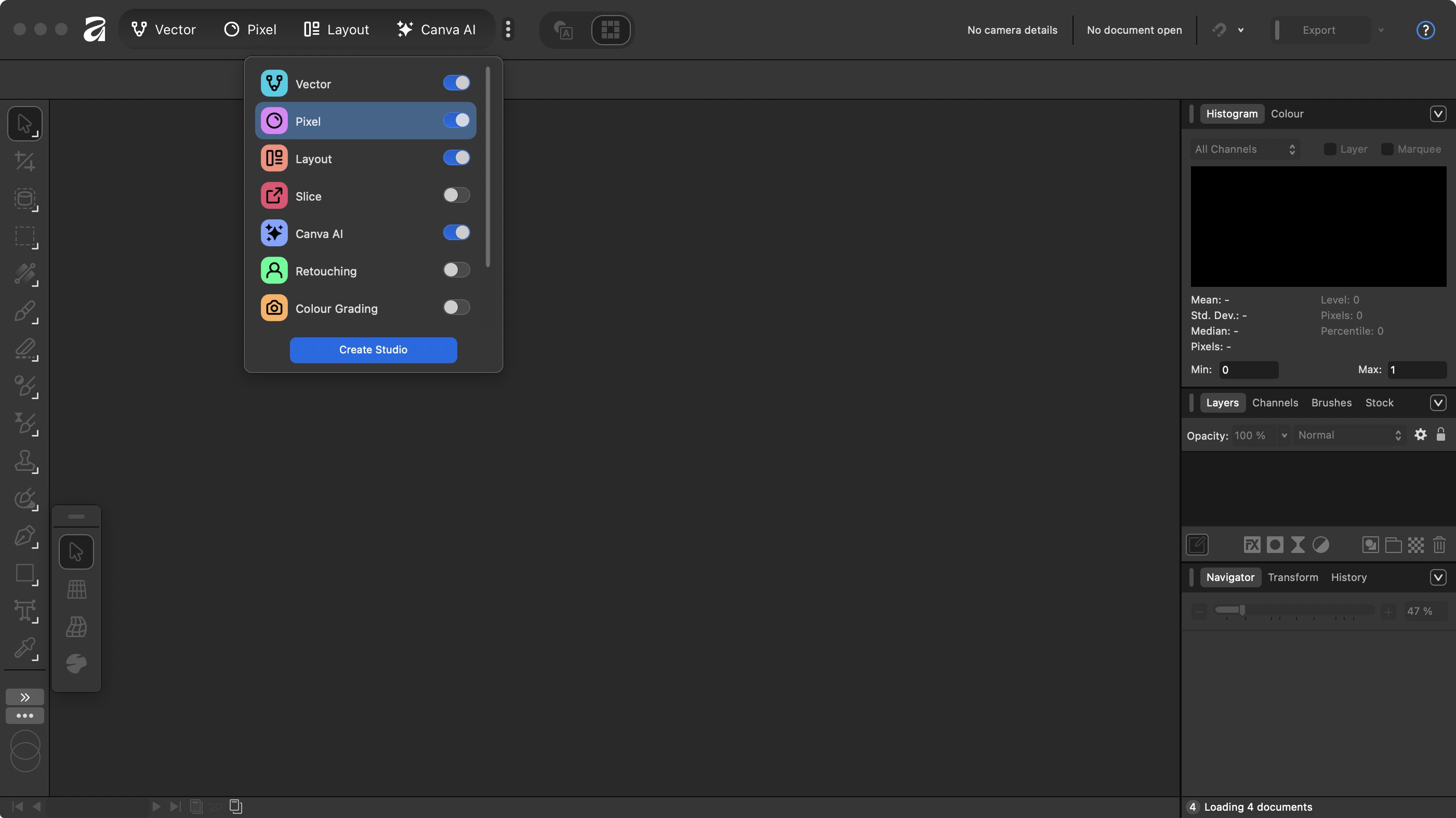
- Superb interface consider it's three apps in one
Launching Affinity for the first time will reveal a slight wrinkle: you need to log in to your Canva account, or create one, before you can use the software. It’s not that big a deal as setting one up is free, and you’ll still be able to access the app when offline.
You may wonder how Affinity manages to combine three apps with vastly different sets of tools, into a single interface. It's achieved by dividing the interface into a number of ‘studios’, which are essentially separate interfaces depending on what you wish to work on.
Toggling between them is done through a menu, top left of the window. By default, you have ‘Vector’ (for Illustrator-type work), ‘Pixel’ (what’s where your photo editor tools are located), ‘Layout’ (where your desktop publishing software tools can be found). And, of course, ‘Canva AI’ if you pay the subscription for AI-laced tools.
But that’s not all.
Click on the three dots to the right of that menu, and you’ll find other workspaces are available, such as ‘slice’, ‘color grading’ and ‘compositing’, and you’ve even got the ability to create your own ‘Studio’, starting by cloning an existing one, and modifying it until it only contains the tools you need.
In that respect, this is a very elegant design. Better still, while working on a project, you can effortlessly switch between studios without having to save your work or anything. You’re in ‘Pixel’ and need to add some curves, just click on ‘Vector’ and carry on working. It’s that simple.
Furthermore, to help designers along in their Affinity journey, mouse over any tool and you’ll get some information about its purpose. Big deal you might think: almost every other software program does that.
True… except here, they go into great detail for each of them, and if that’s not enough for you, there’s a ‘learn more’ button that opens a ‘Help’ window with even more information.
A feature I quite liked deals with additional tools hidden in a single icon. Just like with Adobe, you can tell there’s more there thanks to a little chevron lower right of the icon. In other apps, were you to click on it, it would reveal the additional tools in a sub palette; select the one you need and that extended menu promptly disappears.
Here, it opens up a floating window, making it easy to access those tools again and again should you need to. Click on a different tool’s chevron, and its additional tools will overwrite the previous selection in that floating window, so you won’t end up with a proliferation of floating windows, which can only be a good thing.
All in all, I felt the interface was well designed and considering Affinity now does the job of three apps in one, it all works impressively well.
Affinity: Importing from Adobe
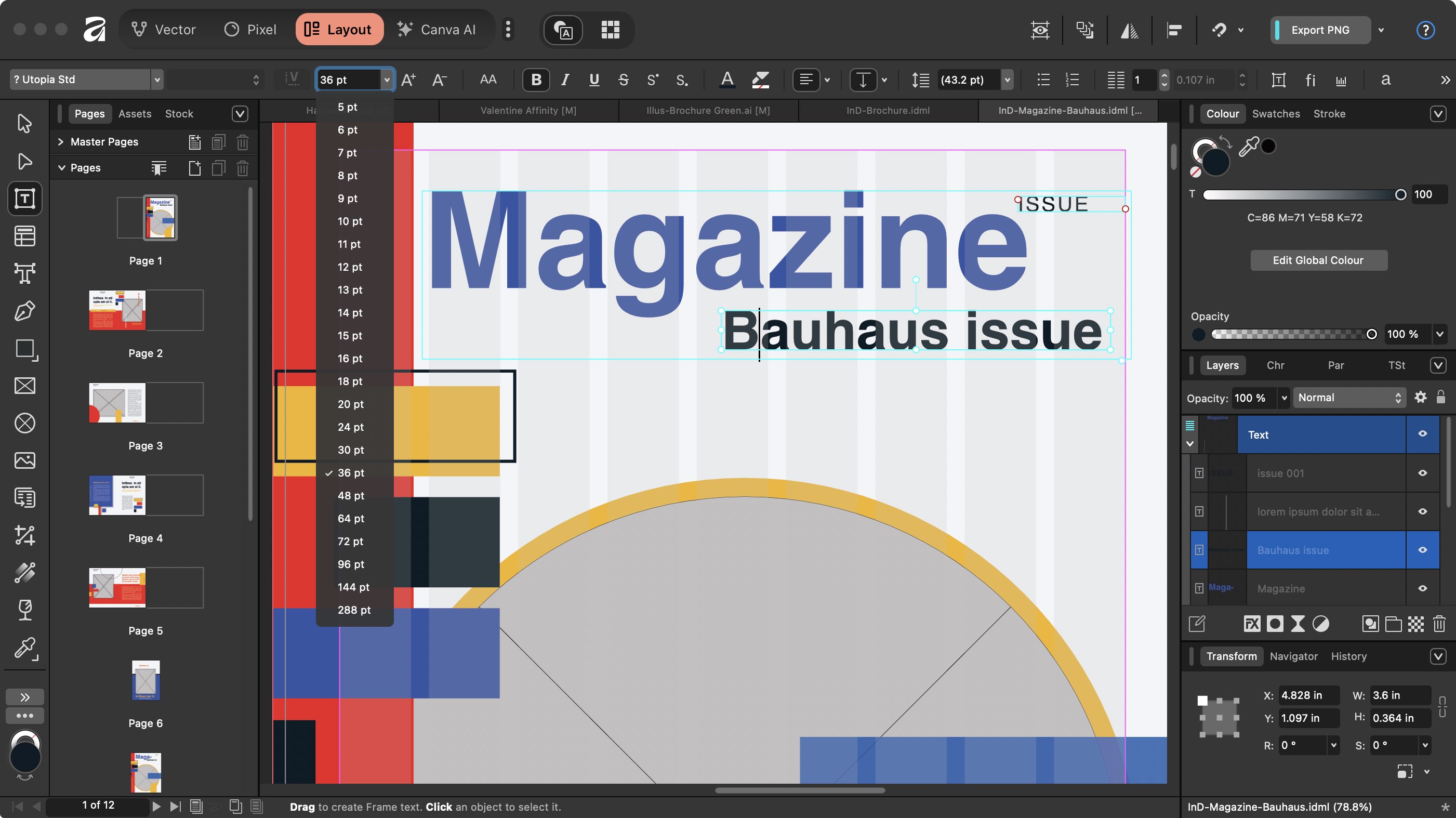
- Importing Adobe projects works - mostly
- More complex files can take a while
Importing Adobe documents into Affinity wasn’t as seamless as I had hoped. Now don’t get me wrong, it works, and it works pretty well - for the most part - but there are flaws.
For one thing, although Affinity is broadly on par with Adobe’s tool palette, some are missing. If you created documents with those missing tools, the result may not be replicated perfectly as you import your file into Affinity. For instance, Smart Objects fall into that category.
Another hindrance I found is based on the fact Adobe doesn’t solely make use of the fonts installed on your computer, but also relies on Adobe Fonts, a collection of cloud-based typefaces. If you use those in your work, it won’t come as a surprise to see that those won’t transfer over when you open your project in Affinity. But as long as you only use fonts installed on your computer, you’ll bypass that problem.
Affinity can read PSD (Photoshop) and AI (Illustrator) files without too much problem. INDD (InDesign) ones however, can’t be read. In order to open them, you need to export your work from InDesign into the IDML format (InDesign Markup Language). It’s frustrating, but it’s nothing new: this was the case for when Affinity Publisher existed, before it was merged into this all-in-one new version.
Finally, the worst part of importing I experienced, was the wait. Go to File > Open, select the document you want and… nothing happens. Or at least, nothing seems to open.
You get no progress bar, no nothing, so I was left with the impression that it didn’t work. I tried again, and again, and again… and then after a while all those files eventually opened, one after the other.
This does show Affinity can handle multiple commands at once, which is not a bad thing, but it would be good to know something is happening which you wait for the file to open. Now this doesn’t happen for every document, but the more complex it is, the more likely you’ll have to wait, with no clue as to when your project will eventually deign to appear.
Affinity: Tools
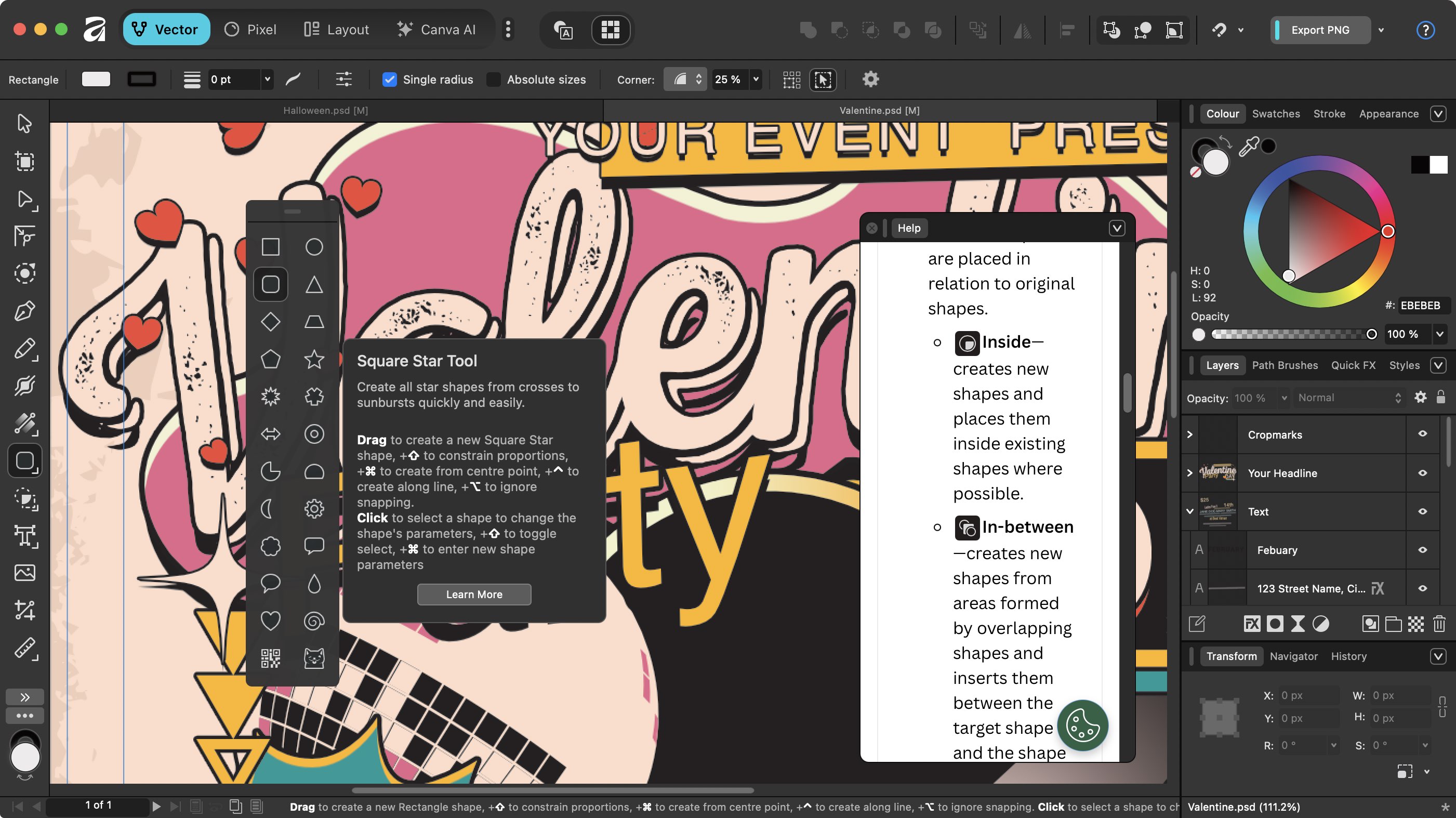
- A huge selection of tools
- All well organized with helpful assistants
If you’re used to other design tools, you’ll understand the concept right away. You have a sidebar where all the tools you need are located (these change depending on which studio you’re in as mentioned above).
On the other side of the interface is your contextual inspector, showing you all your changeable parameters, along with your project’s layers, and more. At this rate, you’ve seen one image processing app, you’ve seen them all.
And yes, don’t expect Affinity to possess all the tools Adobe cram into its own software. Adobe is renowned for that. But to be frank, the overwhelming majority of users don’t use all these tools, and if the one you need happens to be missing from Affinity, chances are there are other ways of doing the same - or similar - thing.
But it’s the little things that I greatly appreciated. Say you want to add a new object to an existing project. You get your paint brush, start drawing, only to realise you forgot to create a new layer and are messing up an existing part of your work.
So, you have to undo what you did, and start again. Well that doesn’t happen with Affinity, as a little clever assistant just automatically creates a new layer as you start drawing. It’s not a big deal really, but it makes using this software a more enjoyable experience.
Now of course, as I keep mentioning, some tools are missing if you’re used to Adobe. I brought up Start Objects earlier on, but a bigger omission is the lack of Curve tools in Illustrator - sorry, I meant Vector. You can use the Pen tool instead, but if you’re migrating, it’s another adaptation you need to make. Thankfully, a lot of the keyboard shortcuts are the same, greatly easing the transition.
If you’re upgrading from Affinity Photo, Designer and Publisher, you might be puzzled as to where the filters have gone to in the Pixel Studio: they’re still there, but now they’re located in the menu bar’s Pixel menu, which means you gain access to those filters whichever Studio you’re in, so you could apply one of them to a vector layer if you wish (doing this will get an assistant to automatically rasterise the selected layer for you).
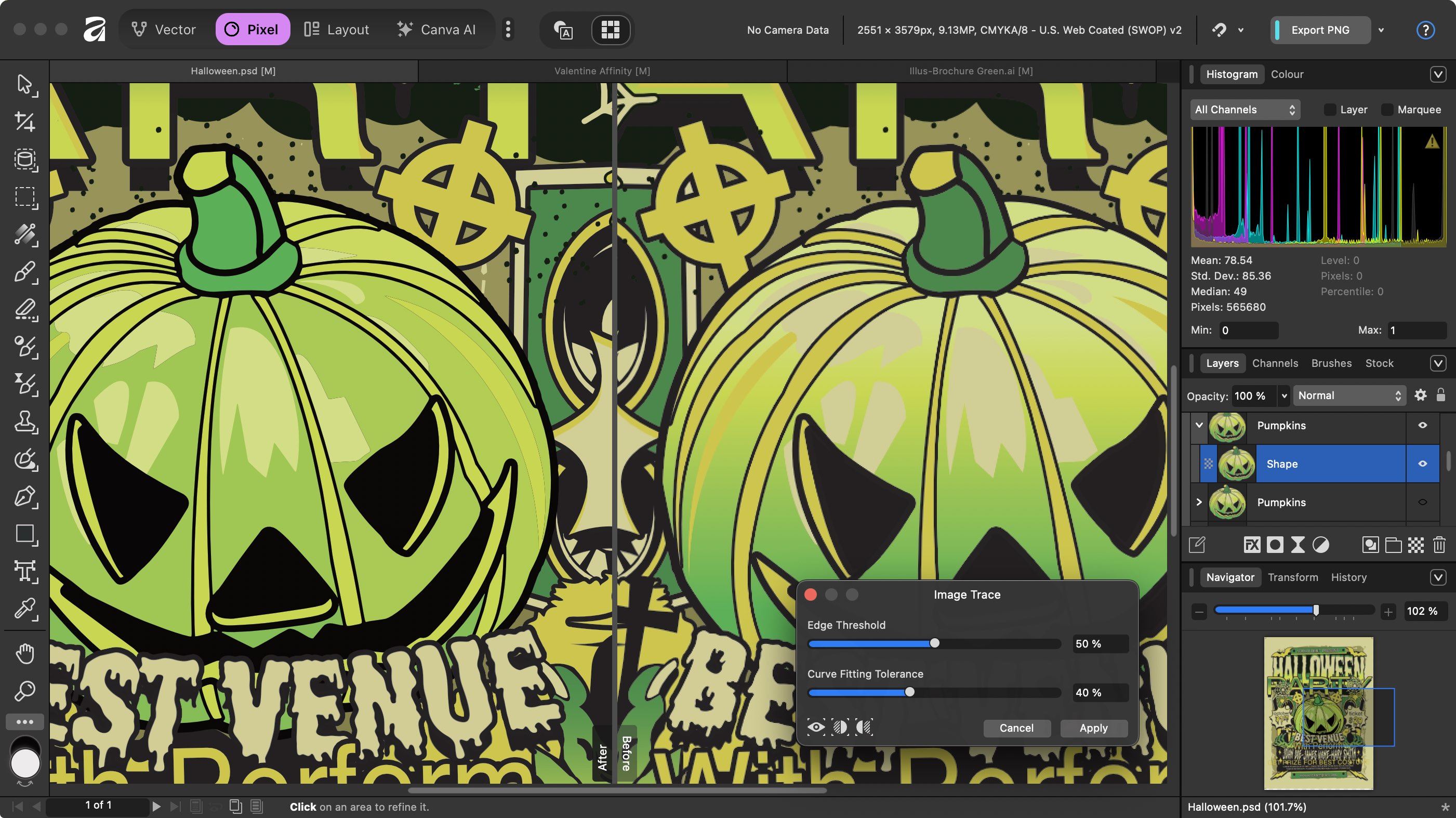
Since you can so easily go from a vector layer to a rasterised one, you’ll be pleased to learn that Affinity can also do the reverse, thanks to its impressive Trace tool. Select the layer you wish to alter, activate the tool, tweak the couple of parameters, check the result before applying it, and you’re good to go. I found the outcome to be remarkably good.
One thing to bear in mind, is that Affinity Photo - now the Pixel section of Affinity - is designed to be a competitor to Photoshop, not Lightroom. As such, it has no file management capabilities, so you’ll need to get yourself a separate app to sort out your images on your computer - or failing that, just be very good at maintaining order in your computer’s file system.
Affinity: Premium AI
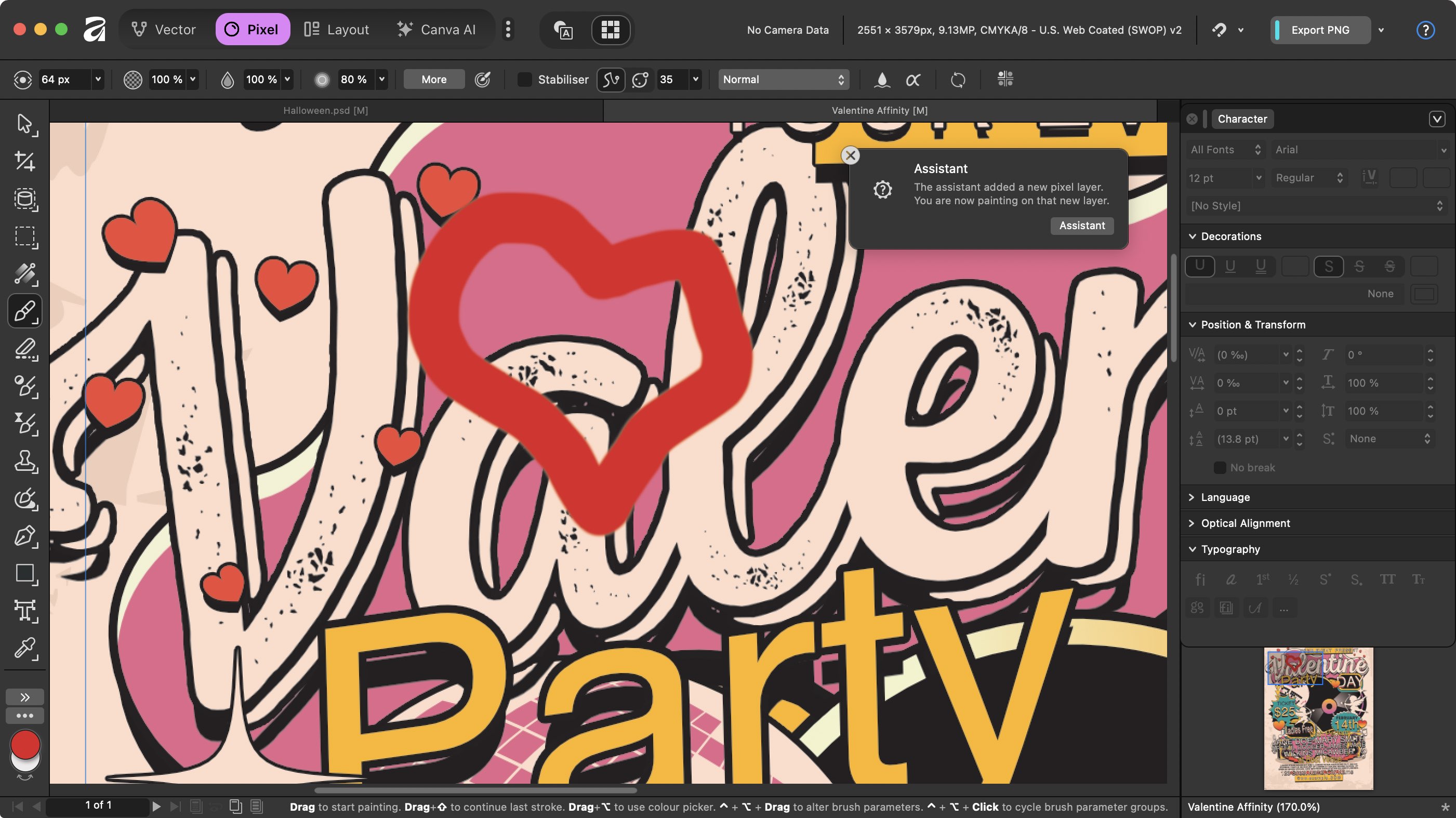
- Tools designed for subscription don’t feel good enough to achieve that goal - for now
All of the above is free. It’s a huge gamble, but one that will certainly benefit those who are tired of renting their software by paying expensive ongoing subscriptions to the likes of Adobe and others to gain access to creative tools.
But Canva hopes that you will choose to take advantage of the Premium subscription to gain access to the AI tools now added to Affinity. These include features such as AI-based object selection, generative fill, upscaling, generative edit, portrait blur, lighting, colorise and depth tools.
To be honest, they’re not show stoppers, must-haves, revolutionary tent pole features. In fact, compared to the tools available for free, these feel pretty average at best.
Still, it’s early days, and Affinity may well release over time tools that feel indispensable and worth their - let’s face it - quite affordable subscription. But today doesn’t feel like it’s that day.
Should I download Affinity?
Get it if…
You’re looking for powerful image compositing tools that are free with no strings attached, that combine the best of raster, vector and page layout design, in an impressively well made interface.
Don’t get it if…
You’re 100% wedded to Adobe’s portfolio, and regularly rely on the tools Adobe has, but Affinity lacks.
For more tools, we've tested the best graphic design software you can get.




