

EaseUS is one of the biggest names in the world of data recovery software, and its Data Recovery Wizard has been around since 2005. After such a long time, you'd hope it's a top option for reliable data recovery. Is it?
Its set of features certainly suggests that it'll get the job done. It claims that it can help you recover lost or deleted files and folders from 2,000+ device types in 1,000+ formats. It can hunt through conventional hard disks and even damaged operating systems, and it supports more file and device types than virtually every rival. It's even got a generous free version alongside powerful paid options.
To find out whether these are simply claims or if EaseUS can actually bring back deleted system data, we’ve put the platform to the test in this detailed review.
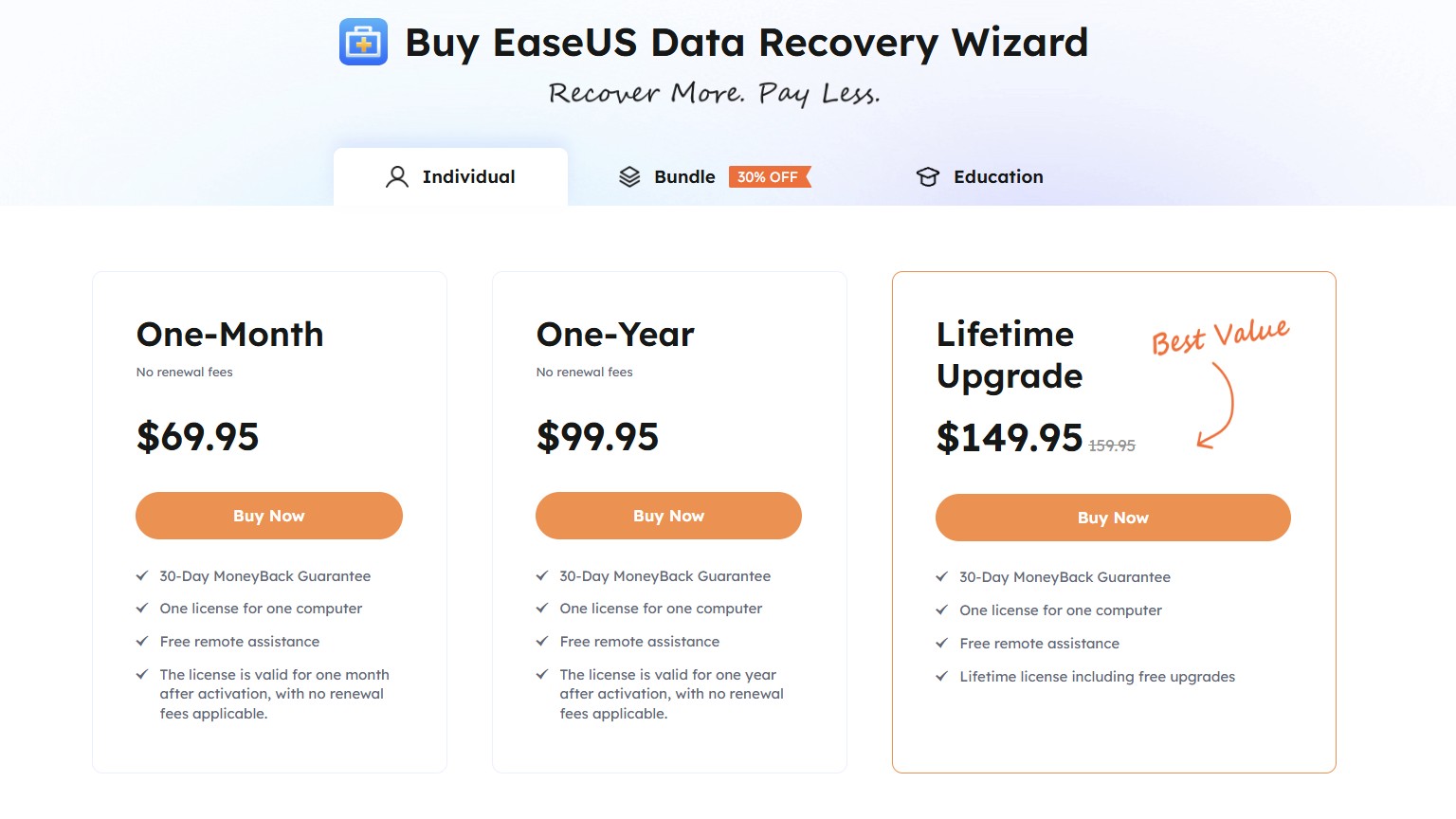
EaseUS Data Recovery Wizard: Plans & pricing
EaseUS's pricing tiers are pretty straightforward. You can choose the one-month plan at $69.95 or the one-year plan at $99.95, with the latter being the better choice. Alternatively, you can purchase the lifetime upgrade for $149.95.
There’s also a free version available on its website, which allows you to recover up to 2GB of data at no cost.
Pro tip: If you’re purchasing the lifetime plan, don’t click “buy now” instantly – wait a couple of minutes, and a 20-30% discount coupon may appear.
We also like that all plans offer the same features and differ only in duration. You can also save 20-30% through bundled plans that combine Data Recovery Wizard with EaseUS Todo Backup and iPhone utilities.
EaseUS Data Recovery Wizard: Features
EaseUS supports 2,000+ storage devices, including USB flash drives, memory cards, cameras, and external hard drives, along with 1,000+ file types such as photos, emails, archives, documents, and videos.
During our testing, we were able to recover JPG, PNG, MP3, and torrent files. The software also handles multiple data loss scenarios, including deletion, formatting, OS crashes, virus attacks, and inaccessible or RAW partitions.
You don’t need to stay in front of your screen during scans – EaseUS allows automatic recovery of scanned files to a selected location. It also allows you to preview files before restoring them, helping ensure you recover the correct files.
Scanning
EaseUS offers two scanning modes: quick scan and deep scan. When you select a drive and hit the scan button, the quick scan mode kicks in first, where the software reads the drive's file directory and master files to find files that were recently deleted and whose directory entry is intact with no data overwritten. This is very quick, often lasting a few seconds or a minute.
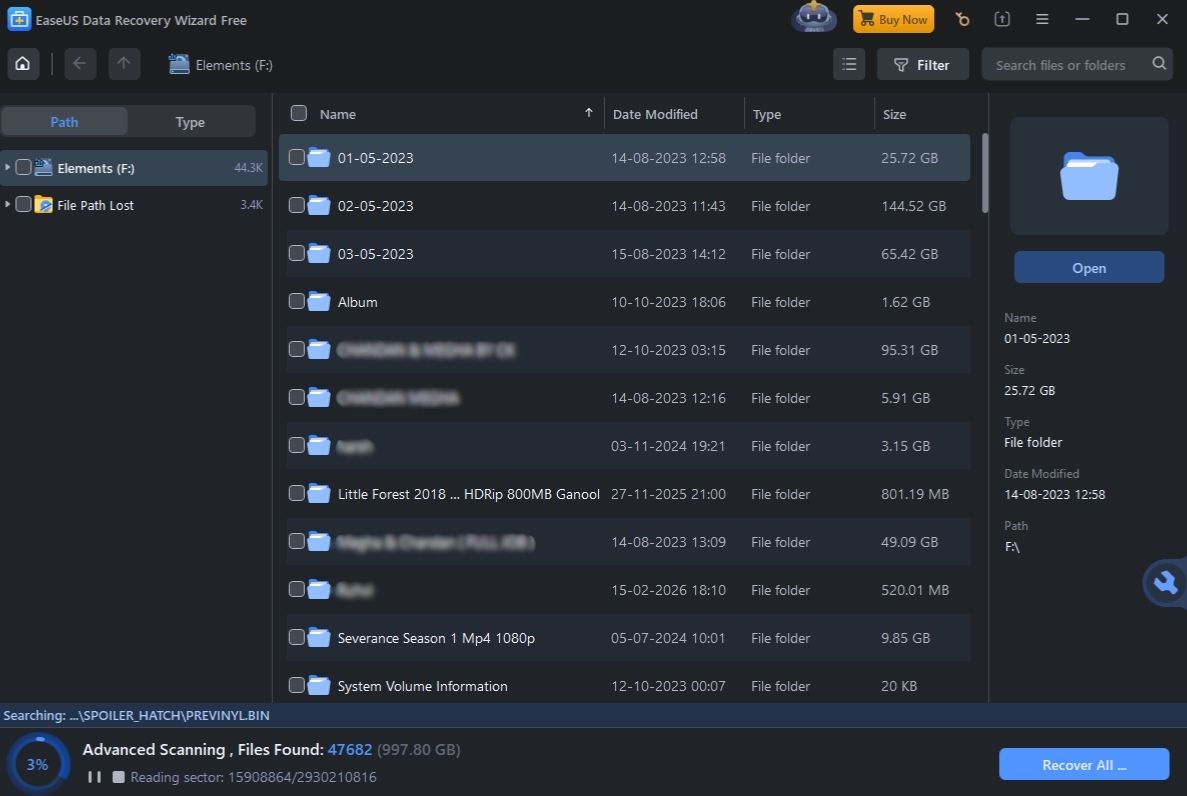
After this, EaseUS enters deep scan mode, where the entire drive is scanned for known file signatures, header-footer patterns, and specific binary codes. Deep scan comes in handy for older files that were lost accidentally or corrupted over time.
During my test, I noticed EaseUS was consuming 1 to 2% of CPU power at rest. However, as soon as we hit scan on the software, the CPU usage jumped to 7 to 8%, often reaching 10% at times.
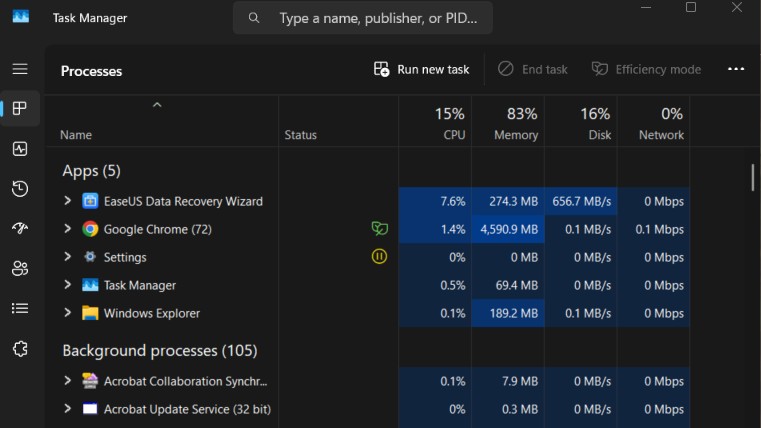
This level of CPU usage is pretty acceptable and normal for a workload-heavy software such as a data recovery tool. I was able to comfortably browse the internet and stream videos without experiencing any performance lags while EaseUS scanned the drive in the background.
Installation and in-use experience
The installation experience of the EaseUS Data Recovery Wizard is pretty seamless. All you have to do is visit its official website and find the free trial button on its homepage, available for both Windows and Mac.
Click on it to download your free version and then double-click the installed file to launch the installer. Wait 3-5 minutes for the installation process to complete, after which you will see the EaseUS home dashboard.
The interface is modern and sleek, with a central pane showing you all your internal and external drives. Searching for lost data is simple, even if you are a complete beginner to data recovery tools.
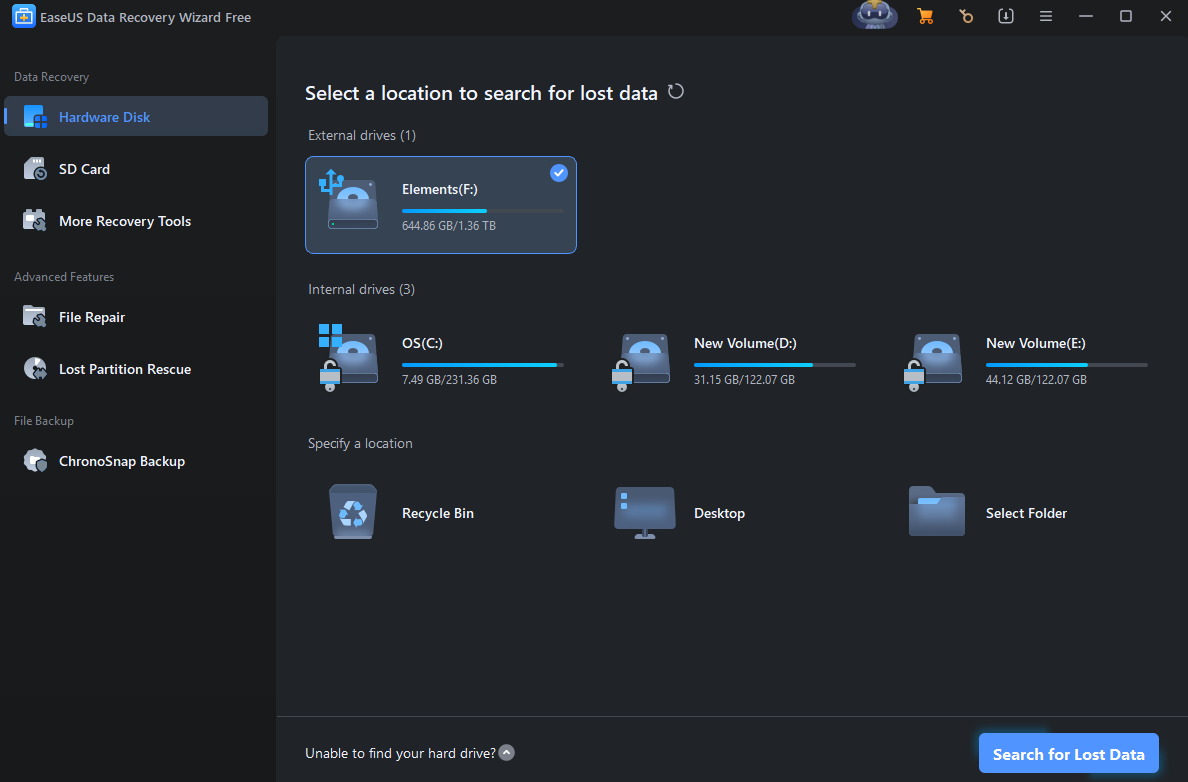
Click on the drive from where the data was deleted and hit the “Search for Lost Data” button in the bottom right corner. EaseUS will then perform a complete drive scan to look for existing as well as deleted files. Besides scanning complete drives, you can also search for specific types of files such as pictures, videos, documents, or audio.
One good thing about EaseUS is that it lets you recover files as soon as you see them pop up while the scan is still running. Click on the file you want to recover and tap the “Recover” button in the bottom right.
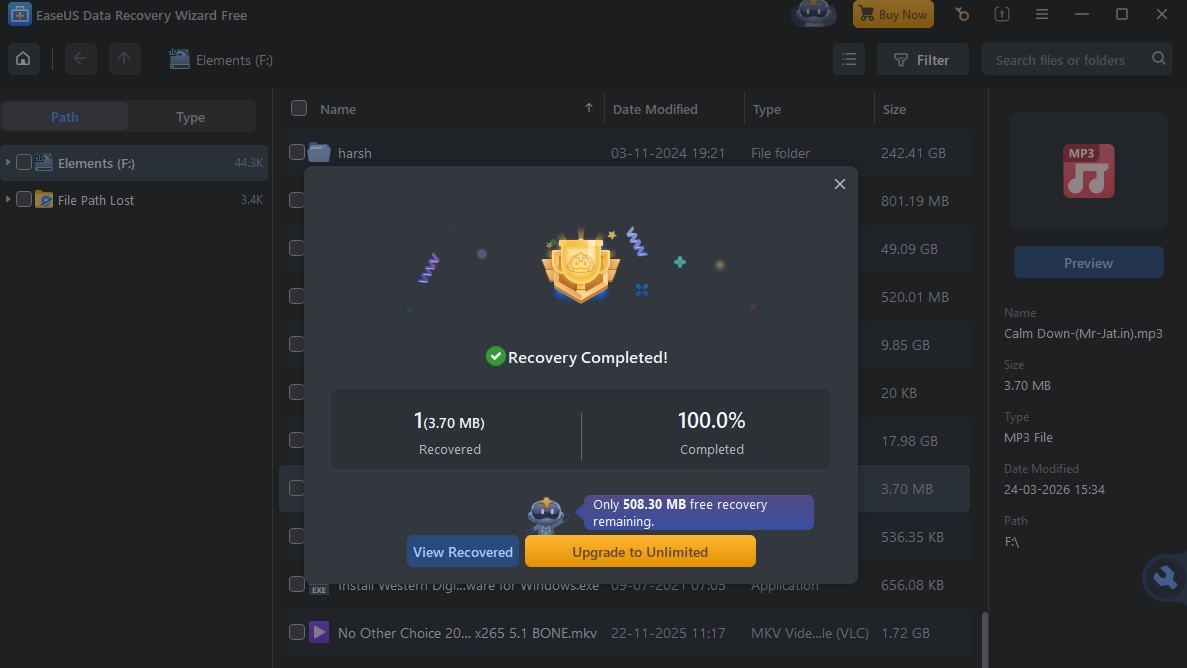
You will then have to choose a destination path where you want to save the recovered file. As soon as you click “Save”, a new File Explorer window will open with your recovered file. All of this happens while the scan is still ongoing in the background.
After we recovered an MP3 file of 3.70MB, our free allowance was reduced to just 508.30MB, which was pretty shocking. It's possible that the 2GB limit might apply to the size of the drive being scanned instead of the amount of data recovered.
How we tested
We first installed the free version of EaseUS on our Windows 11 system, with 16GB of RAM and a 12th Gen Intel(R) Core(TM) i5-12500H processor.
To test EaseUS's data recovery capability, we downloaded an album of Mozart's music from the Internet Archive. This consisted of 22 files – 13 JPG files, 4 PNG files, 2 MP3 files, 2 FLAC files, and 1 torrent file. We copied this folder onto a 1.36 TB NTFS hard drive and connected it to our Windows 11 system.
We then deleted this folder and emptied the Recycle Bin. After this, we ran a scan with EaseUS, and within a matter of seconds, it found the deleted folder. We simply clicked on it and hit recover, and all 22 files were recovered in our chosen destination within a few seconds.
I also tried to recover the same set of files from the local drive on my system, which EaseUS did comfortably. We noticed that the scanning process is much faster on a local disk than on an externally connected drive, likely due to the higher data transfer speeds and lower latency associated with internal storage interfaces.
EaseUS Data Recovery Wizard: Support
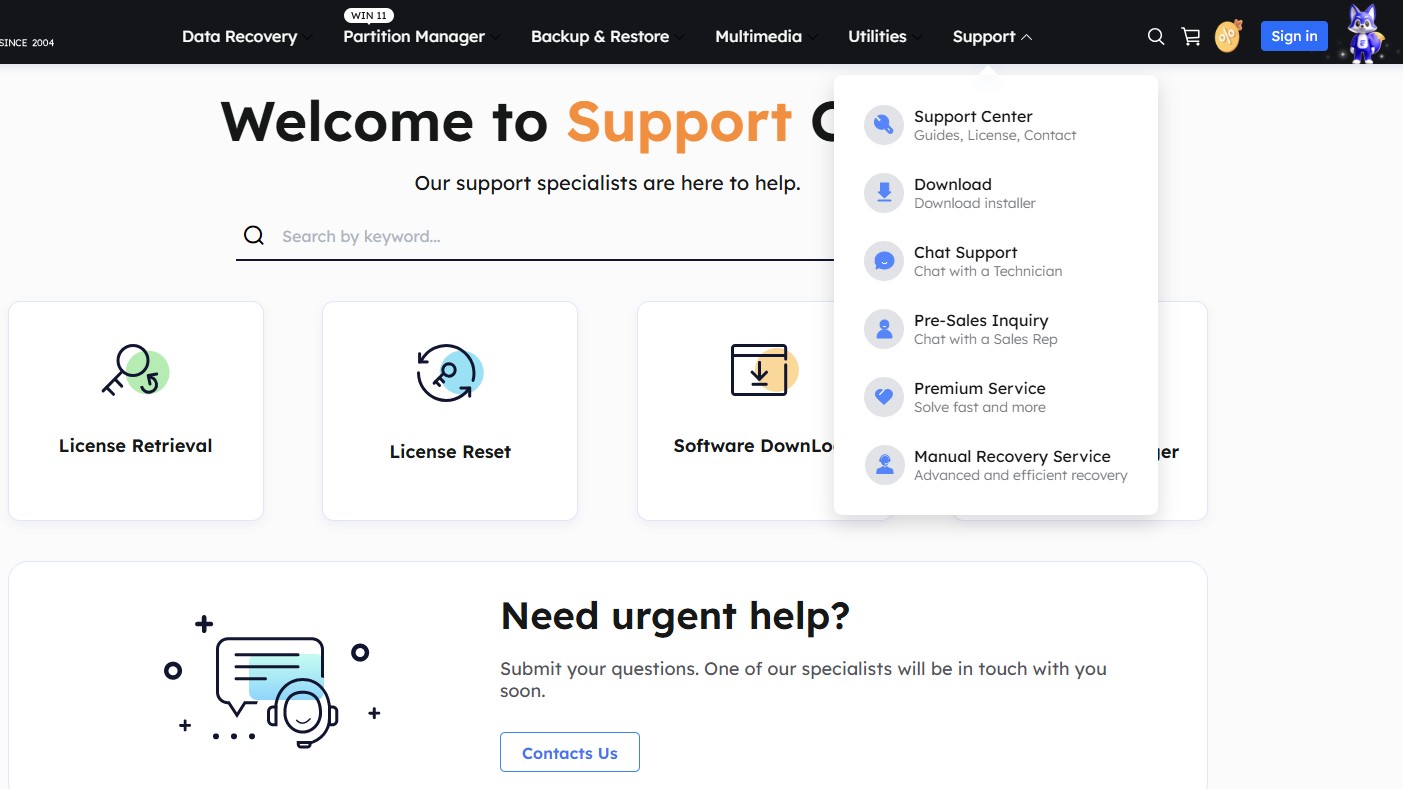
EaseUS offers a fairly comprehensive customer support system, accessible directly from its Support Center. From the dropdown menu, you can quickly navigate to options like Support Center, Download, Chat Support, Pre-Sales Inquiry, Premium Service, and even Manual Recovery Service for advanced cases.
There’s also a handy search bar that lets you instantly look up guides, licensing help, or troubleshooting queries without digging through menus.
For more urgent issues, EaseUS provides direct access to human support. You can reach out via email, call their support number, or use live chat to speak with a representative. This makes it easy to get real-time assistance, whether you're dealing with technical problems or pre-sales questions.
EaseUS Data Recovery Wizard: Final verdict
EaseUS is an all-round data recovery software that allows you to get back your data in various loss case scenarios, such as deletions, virus infections, or accidental OS crashes. Along with two scanning modes – quick scan and deep scan – the process is fairly quick, with low CPU utilization at around 7 to 8%.
The interface is modern and very easy to use, even for beginners. The pricing is fair and at par with industry standards, although cheaper options exist. There’s a handy 2GB free data recovery option, which lets you test out the platform before getting a subscription.




