Regular readers of my reviews will know I’m not a big fan of renting software (developers erroneously refer to those as ‘subscriptions’). I prefer to purchase - and therefore own - my software.
But what’s better than paying for stuff? Getting it for free of course! So what do you do when your budget’s just too tight, not only to afford expensive ongoing monthly commitments (like Photoshop), but even just one-off costs (like Pixelmator Pro)? You set out on a search for free alternatives, such as GIMP, that’s what.
GIMP: Pricing & plans
- A free image manipulation tool. What’s not to like?
GIMP stands for GNU Image Manipulation Program - an acronym within an acronym! GNU is the backbone of the free software movement. it's a massive collection of free software designed to create a UNIX-like operating system with a focus on user freedoms. GNU stands for ‘GNU’s Not Unix’.
GIMP has massively evolved since those origins, and has been multi-platform, available on Linux, Windows and Macs, for a while.
It’s a free and open source raster-based photo editor. Raster means you’ll be working with and can manipulate pixels, just like in paid-for alternatives such as Photoshop, Affinity, and Pixelmator.
You can grab your own copy by clicking here.
GIMP: Interface
- Simple and similar to its competition
- But it can be totally customized to fit your style
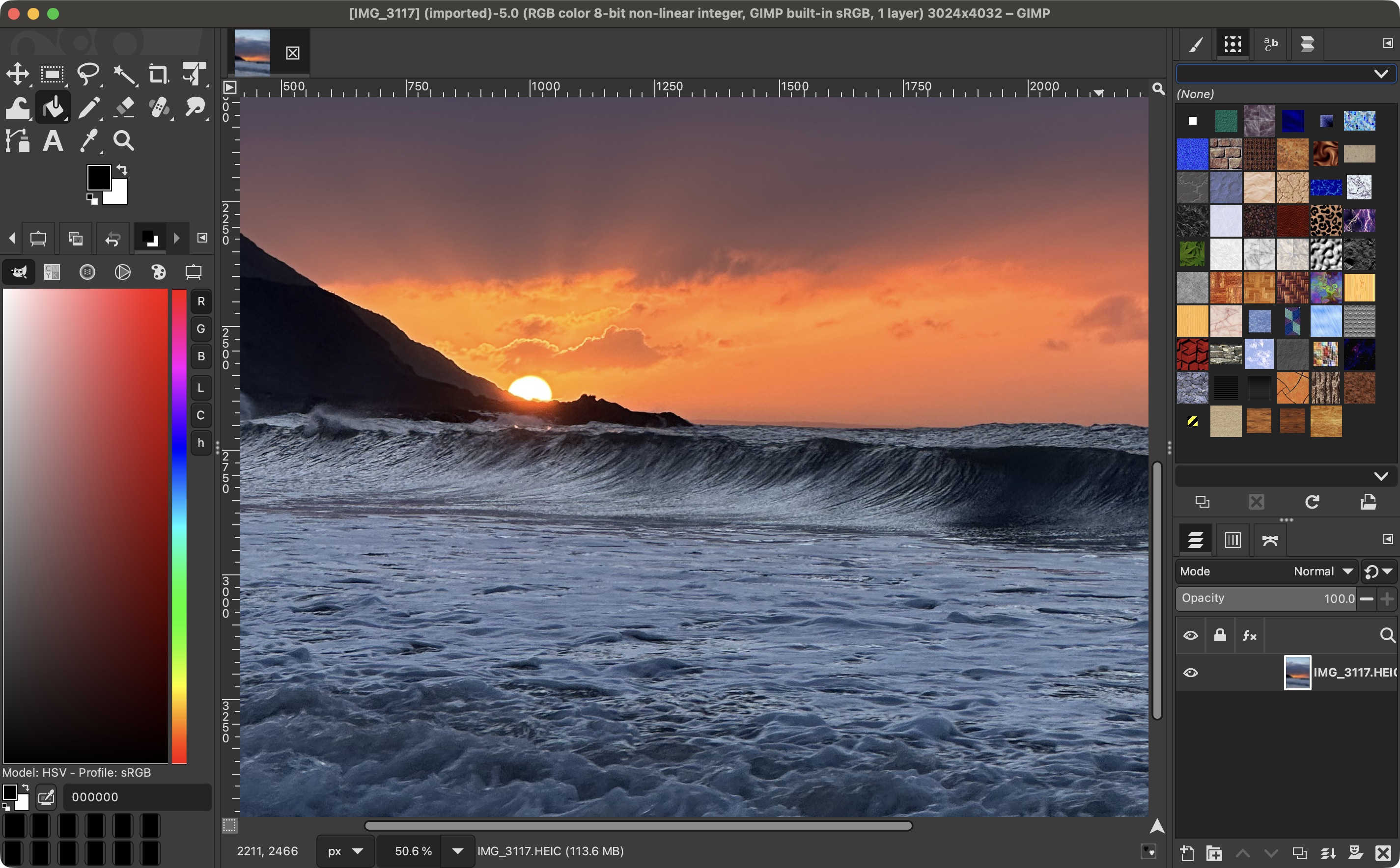
Launch the app and you’ll find an interface that’s very similar to most other image manipulation software. You’ve got a sidebar on either side, containing tools, inspectors, layer and channel info, and more.
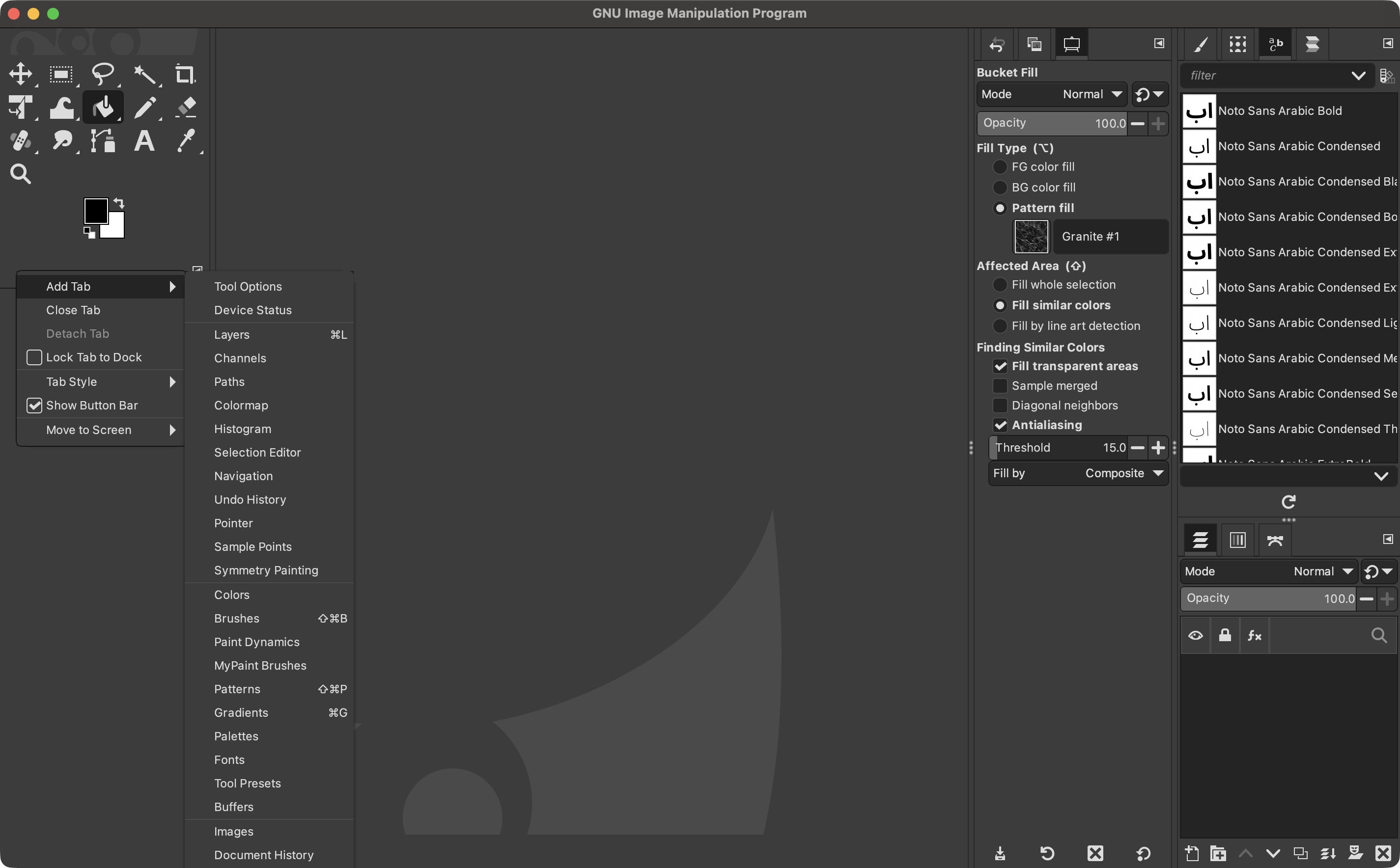
But you’re not constrained by that layout. In a way similar to Photoshop, you’re able to move those panels to other locations on the interface, or close them altogether. You’ll find a list of all available parameters by going to Windows > Dockable Dialogs.
This flexibility can be very welcome to set up an interface exactly as you want it - the flip side of course, is that it can make it tricky when using the exact same software on another computer, although admittedly, that would only affect a small number of users.
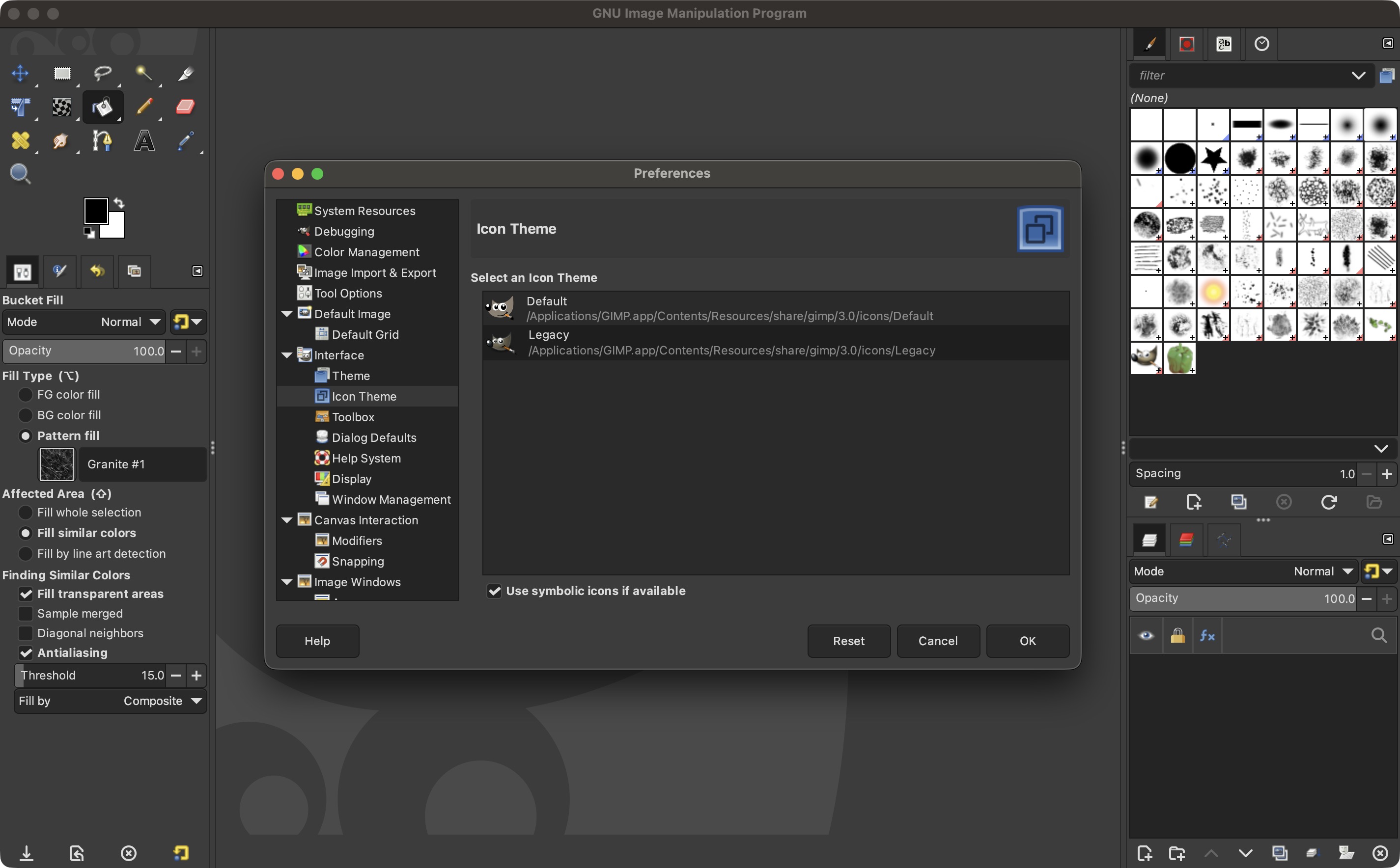
Another way to customize GIMP is via its Settings options. From there, the colour theme can be altered - which means this is where you choose between a white, grey or black interface, or have this be linked to the general preference you set in your operating system. Icons can be bigger or smaller than the default (which can be useful when working on very large displays).
If you prefer coloured icons as GIMP used to have, rather than the new mono-colour minimalist look, reverting to them is but a click away.
GIMP: Tools
- A vast collection of tools for altering and improving photos
- You can create complex layer-intensive projects
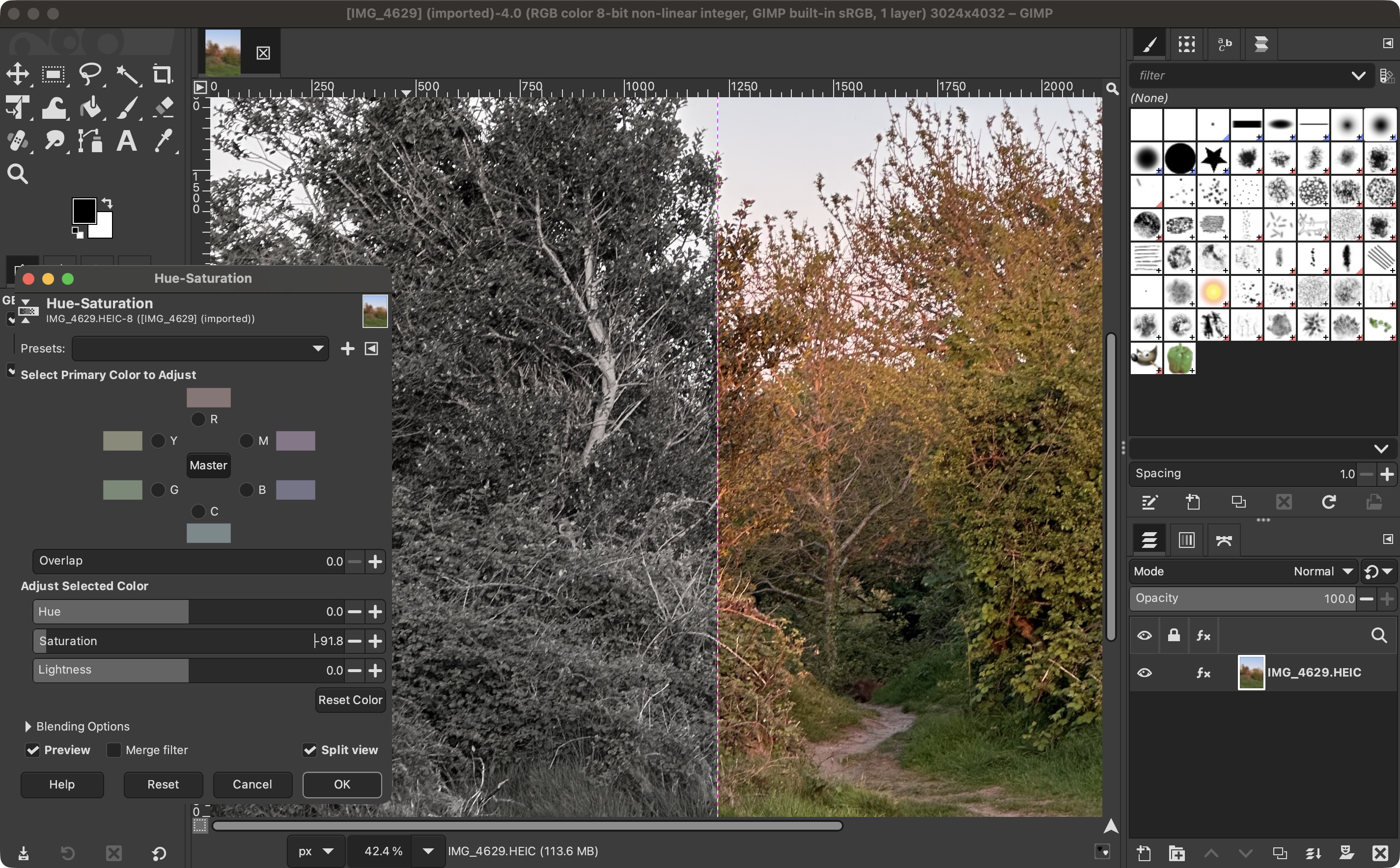
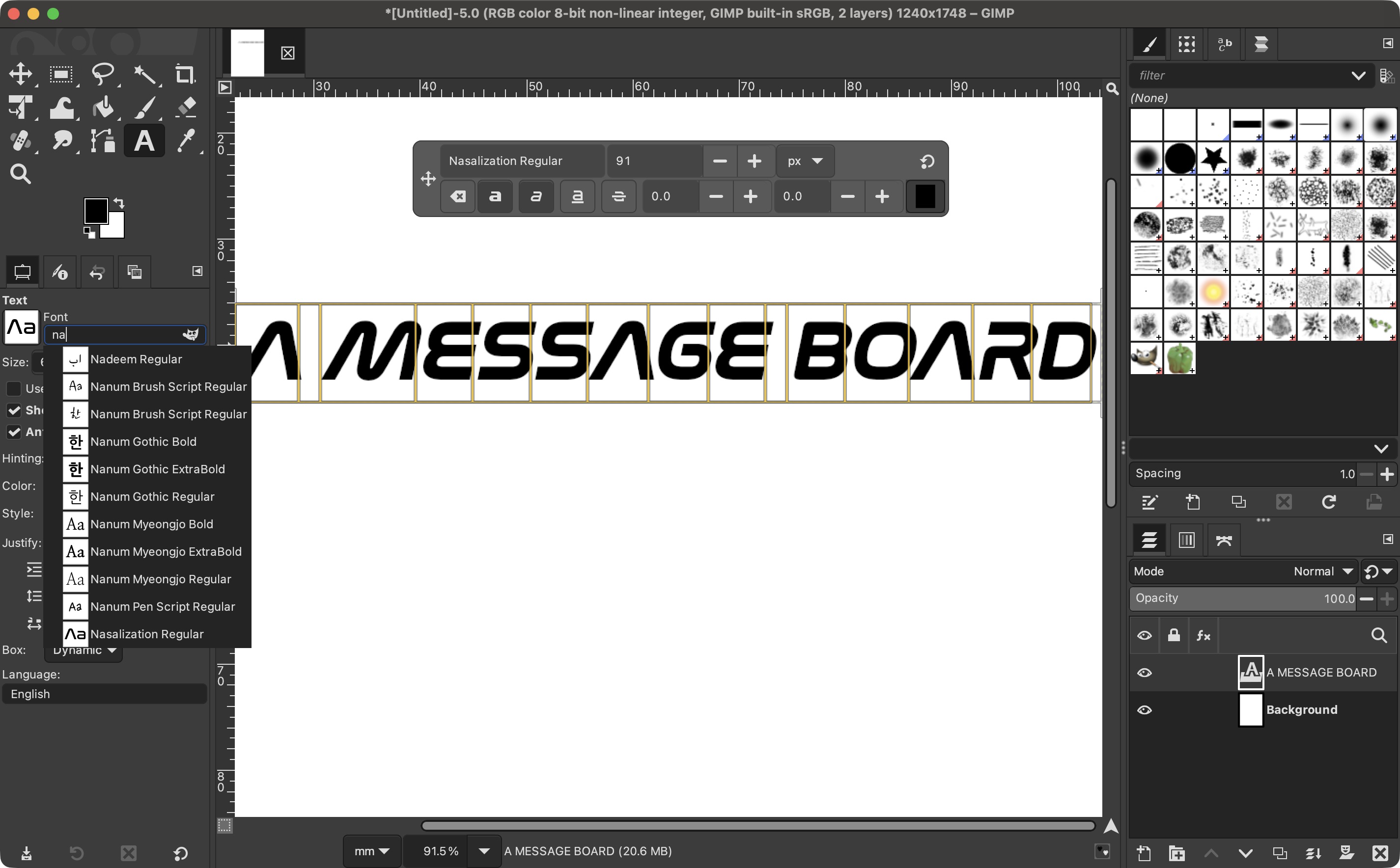
When it comes to the available tools, pretty much everything seems to be there. You have selection tools, both rectangles and elliptical ones, a lasso tool, and a wizard wand.
There’s a crop tool, transform options, including distortion and smudge capabilities, colour application tools like a bucket, pencil, pen, gradient, and eraser, a healing brush, text options, and the ability to create paths. Basically, this is everything you’d expect from a modern raster-based image manipulation program.
As for Layer work, your project can have as many of them as you need. You can move them around, lock or hide them, apply filters to each of them, and there’s even a handful of composite modes you can apply to them (although not as many as other programs).
Speaking of filters, you have dozens to work with, from the basic blurs and sharpen tools, to more artistic ones. Again, there is nothing there that I haven’t seen before, and they’re all most welcome. The same can be said about all colour correction parameters.
All in all, on paper it looks great, and if that’s not enough for you, GIMP is compatible with 3rd party plugin, including Photoshop-compatible ones. With them, you could import hundreds of new brushes for instance. The most popular plugin collection comes from G’MIC, which brings over 600 filters to GIMP (and other compatible software). These plugins are free, and you can get them all from here.
GIMP: In use
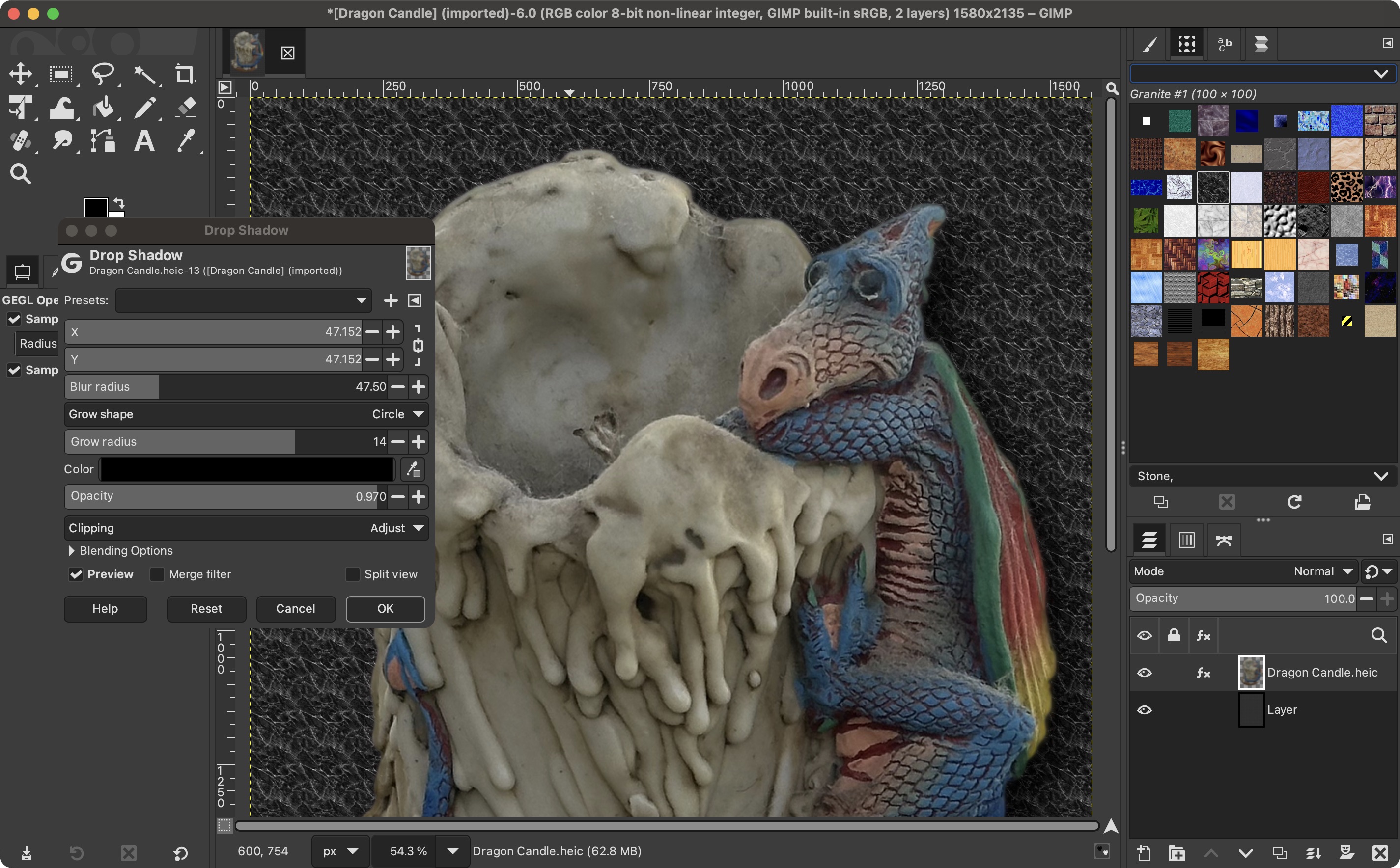
- A good selection of tools, but some appear to be missing
- Scrolling through a zoomed in image can be a serious struggle
- Room for improvement
How all this will work for you in a real-world workflow will be greatly subjective, so here’s where I’m coming from so you can understand my own perspective: I regularly use Affinity, Adobe Photoshop, and Pixelmator Pro.
Although GIMP provides most of the tools I’d need, like 98% of them, there were a handful of things which made it tricky for me to use. The absolute worst for me was zooming in and scrolling through an image. I use my trackpad a lot for this and with any of the other image manipulators I’ve used regularly, I could do this and move through the canvas effortlessly.
Not so with GIMP. Zooming in and out was fine, but scrolling through the image to get to where I needed was practically impossible - unless I needed to go to an edge or corner - it did that in a flash - but it was impossible for me to slowing move around and make the alterations I needed up close.
Sure, I could do it by grabbing the handle bars to the right and bottom of the image, but that’s far from an intuitive way of altering projects. I’m not sure why this wasn’t working, but it was a serious hindrance.
As for the tool I missed the most: background removal. It’s a relatively modern one, and it’s never perfect when the background is complex, requiring a lot of touch up, but it’s so much faster than any previous methods… yet GIMP doesn’t appear to have it in its portfolio. Instead, you need to do it the old fashioned way, by manually selecting the object and clean up the selection.
OK, that’s what I used to have to do in the past, but I shouldn’t expect to have to do it now. A part of me hopes such a tool is present and I just missed it, because not having it sure is a chore, even if the app itself is free.
Having said that, what tools GIMP does have are well designed, easy to use, and effective. If you’re looking for an image manipulator with simple to moderate tools, you really have nothing to lose by checking out GIMP. Who knows: it might meet or even exceed your expectations, and will save you a bunch of money in the long run.
Should I try GIMP?
Buy it if...
You’re looking for an image manipulator program that provides a wealth of tools, is compatible with third-party plugins, and won’t cost you a dime.
Don't buy it if...
You need a workspace that is way more forgiving than GIMP is, and you’d rather have access to some advanced tools, instead of doing it “the old fashioned way”.
GIMP: Also consider
For alternatives to GIMP, I recommend Affinity by Canva, Adobe Photoshop, and Pixelmator Pro.